

|
Every writer, copy-editor and proofreader comes across words that are used correctly but spelled incorrectly (typos), but we also have to look out for words that are spelled correctly but used incorrectly – this is the world of confusables.
What are confusables?
Some confusables are not only spelled differently, they sound very different too, e.g. imply/infer; militate/mitigate; reactionary/reactive. In this case, the writer might have misunderstood the meaning. Some confusables are homophones – words that are spelled differently but sound the same, e.g. rein/reign; stationary/stationery; prophecy/prophesy; loath/loathe. In this case, the writer understands the different meanings, but is unsure of the appropriate spelling. Then there are errors that are simply a result of hands moving too fast over a keyboard – the meanings and correct spellings are known to the writer, but, in their haste, perhaps they’ve transposed a couple of letters or omitted a character. Or it may be that the automatic spellcheck has kicked into gear and the writer hasn’t noticed the problem because they’re concentrating on the bigger picture. Examples might include e.g. filed/field; adverse/averse; pubic/public. Blind spots Writers aren't the only ones with blind spots. Editorial pros do too. It’s our job to spot these problems and fix them. However, we’re only human and most of us have a few blind-spot words that our eyes are, on occasion, less likely to notice, even though we do know the differences in meaning and spelling. My own blind spots are gaffe/gaff, brake/break and peek/pique/peak. I don’t know why my eye doesn’t spot these pesky confusables as readily, especially when the likes of compliment/complement or stationary/stationery scream at me from the page! However, I accept that I do have blind spots and have taken steps to ameliorate the problem with a little mechanical help – the macro. How can macros help? Using macros enables us to identify possible problems before we get down to the business of actually reading, line by line, for sense. Every time we find an error, we have to think about it and decide whether to amend. By reducing the number of interruptions, we can focus our attention on the flow of the words in front of us and increase efficiency. For this reason, I, like many of my colleagues, run my macros at the beginning of a project (though I often repeat the process at the end stage too). What’s on offer in the world of confusables? There are several free macros available to the copy-editor or proofreader who wants to tackle confusables with efficiency. See, for example, the excellent “A Macro for Commonly Confused Words” published by C.K. MacLeod on Tech Tools for Writers (updated July 2015). Another option, and the one that I’m currently using, is the CompareWordList macro created by Allen Wyatt on WordTips. See “Highlight Words from a List” (updated July 2015). As some of you will already know, Wyatt has two WordTips sites; the one you use will be determined by which version of Word you’re running. The linked article above will take readers to the article written for MS Word 2007, 2010 and above. If you are working with an older version of Word, you’ll need to follow Wyatt’s links to the sister site. Why I’m using Wyatt’s CompareWordList CompareWordList is currently my preferred tool simply because of how easy it is to create and update my own list of words to be checked – words that can, on occasion, be blind spots for me. As I’ll show below, customizing the list of confusables doesn’t require me to amend the script of the macro once it’s installed. Instead, all I have to do is amend a basic list in a Word document – nice and simple! Using CompareWordList 1: Create your list of confusables The first thing to do is to create a list of the words you want the macro to find, and highlight, in a Word document.
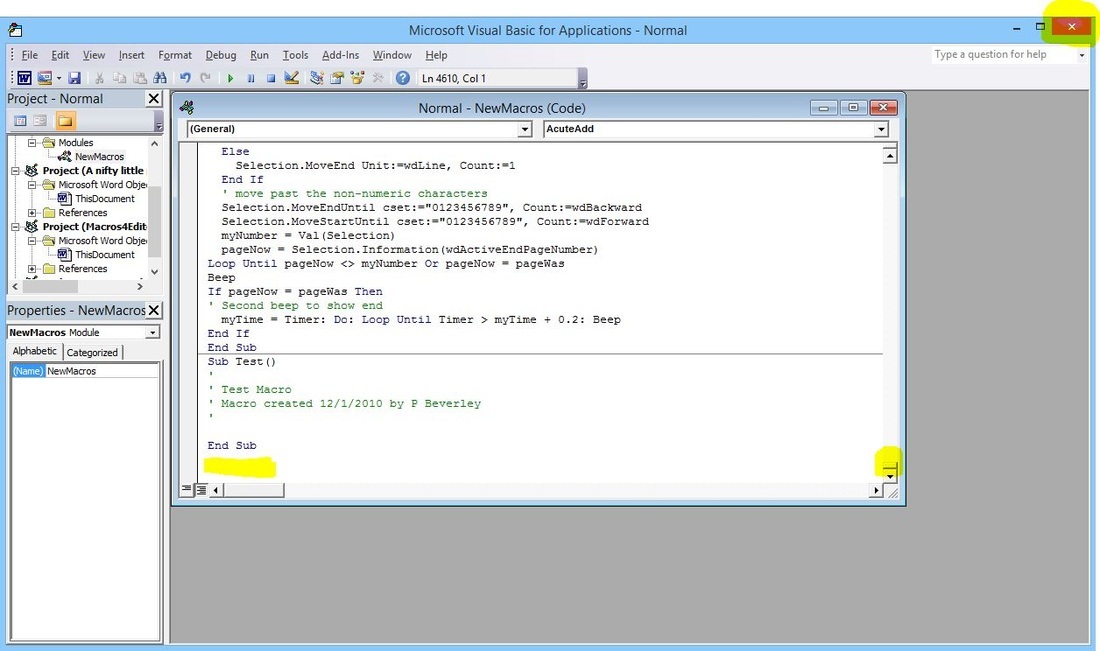
Using CompareWordList 2: Get, and tweak, the code Visit “Highlight Words from a List” and copy the code. If you’re completely new to installing macros, just paste the script in a Word document for now so that you can tweak it easily. Below is a screenshot of Wyatt's code. The highlighted sections show where I’ve tweaked the code to suit my own needs. 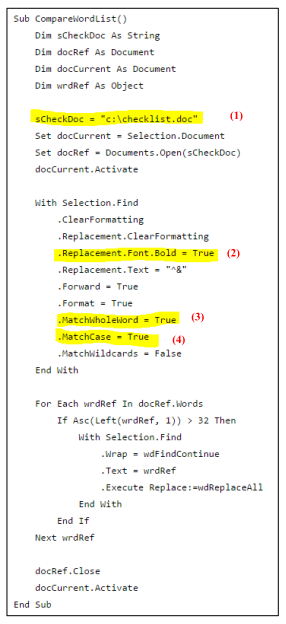
Screenshot of Allen Wyatt's CompareWordList macro code
Tweaks to consider
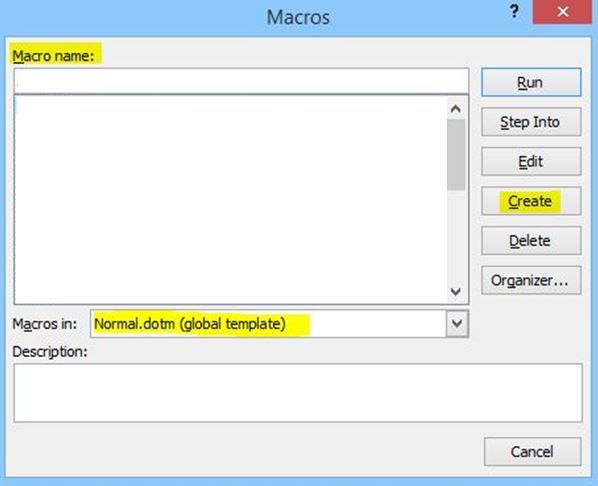
(1) I’ve changed Wyatt's code (as per his suggestion) so that it describes where my list of confusables is located: sCheckDoc = "c:\Users\Louise\Dropbox\Macros\confusables.docx". You’ll use the location you made a note of when you created your own list (see the section above – Using CompareWordList 1: Create your list of confusables). (2) Wyatt's code emboldens the words found by the macro; I wanted them highlighted so I replaced the highlighted text as follows: .Replacement.Highlight = True. (3) I changed the Match Whole Word instruction to False because I wanted the macro to find part words. This, of course, will pull up some false positives but it was the easiest solution I could find. (4) I also changed the Match Case instruction to False. Now that you’ve tweaked the code to suit your own needs, you’re ready to install it (the basic, step-by-step instructions below are provided for the benefit of those who are completely new to macro installation). Using CompareWordList 3: Install the code With Word open, open the “View” tab and click on the “Macros” icon on the ribbon. 
This will open up a new window.
If you don’t have any macros already loaded:
If you have macros loaded (your TEST macro or any other):
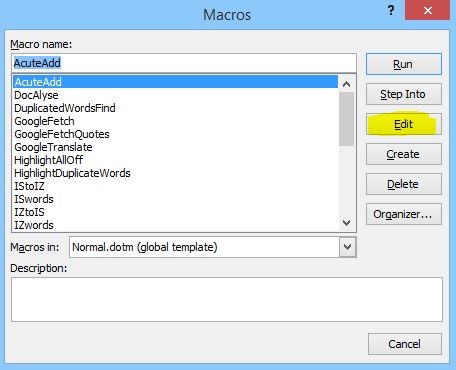
This will open up a further window:
Running CompareWordList
Removing highlights one by one Here’s a tiny macro that I recorded to remove a highlight as I move through a Word document. Installing this means I simply have to click on a highlighted word and run the macro. Assigning a shortcut button (see below) makes the job easy and efficient. I decided on Alt H because I don’t have that keyboard shortcut assigned to any function that I carry out regularly. Sub UndoHighlight() ' ' UndoHighlight Macro ' ' Options.DefaultHighlightColorIndex = wdNoHighlight Selection.Range.HighlightColorIndex = wdNoHighlight End Sub To install: Simply copy the red script above and install it in the same way that you installed the CompareWordList macro. To create a shortcut key: In Word, select File, Options, Customize Ribbon (1). Click on Customize (2). A new box will open up entitled “Customize keyboard”. In the Categories window (3), scroll down and select Macros. In the Macros window (4), select UndoHighlight. Finally, choose your preferred keyboard combination by typing it into the Press New Shortcut Key window (5). Select Assign and Close. 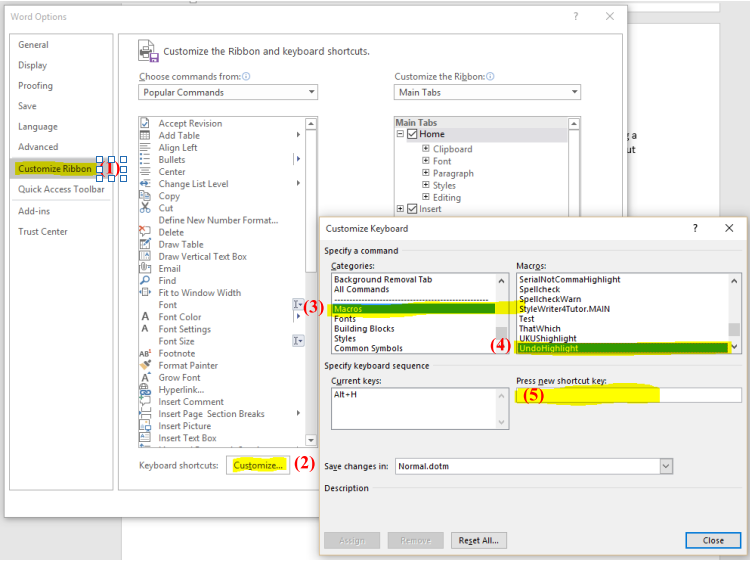
To remove ALL highlighting in one go: For this job, Paul Beverley’s your man. A huge number of macros are available in his free book, Computer Tools for Editors (available on his website at Archive Publications).
Hope you find this useful!
Louise Harnby is a line editor, copyeditor and proofreader who specializes in working with crime, mystery, suspense and thriller writers.
She is an Advanced Professional Member of the Chartered Institute of Editing and Proofreading (CIEP), a member of ACES, a Partner Member of The Alliance of Independent Authors (ALLi), and co-hosts The Editing Podcast. Visit her business website at Louise Harnby | Fiction Editor & Proofreader, say hello on Twitter at @LouiseHarnby, connect via Facebook and LinkedIn, and check out her books and courses.
11 Comments
|
PDF MARKUP
AUTHOR RESOURCES
EDITOR RESOURCES
TESTIMONIALSDare Rogers'Louise uses her expertise to hone a story until it's razor sharp, while still allowing the author’s voice to remain dominant.'Jeff Carson'I wholeheartedly recommend her services ... Just don’t hire her when I need her.'J B Turner'Sincere thanks for a beautiful and elegant piece of work. First class.'Ayshe Gemedzhy'What makes her stand out and shine is her ability to immerse herself in your story.'Salt Publishing'A million thanks – your mark-up is perfect, as always.'CATEGORIES
All
ARCHIVES
July 2024
|




 RSS Feed
 |

|

|

|

|
|
|
|

© 2011–2024 Louise Harnby